
SMART 2.0 — Sales & contracts (shared)
Most web sales work happens under shared/, not sales/. The sales/ folder is the home dashboard; shared/contracts.aspx and shared/contract-management.aspx are where contracts are built and moved through ratify/close.
Who uses this
Section titled “Who uses this”| Role | Typical screens |
|---|---|
| Sales agents / managers | Contacts, contracts, contract management |
| Contract coordinators | Ratify, close, cancel, advanced search |
| Admin / sales support | Notes upload, business (vendor) records |
Key screens
Section titled “Key screens”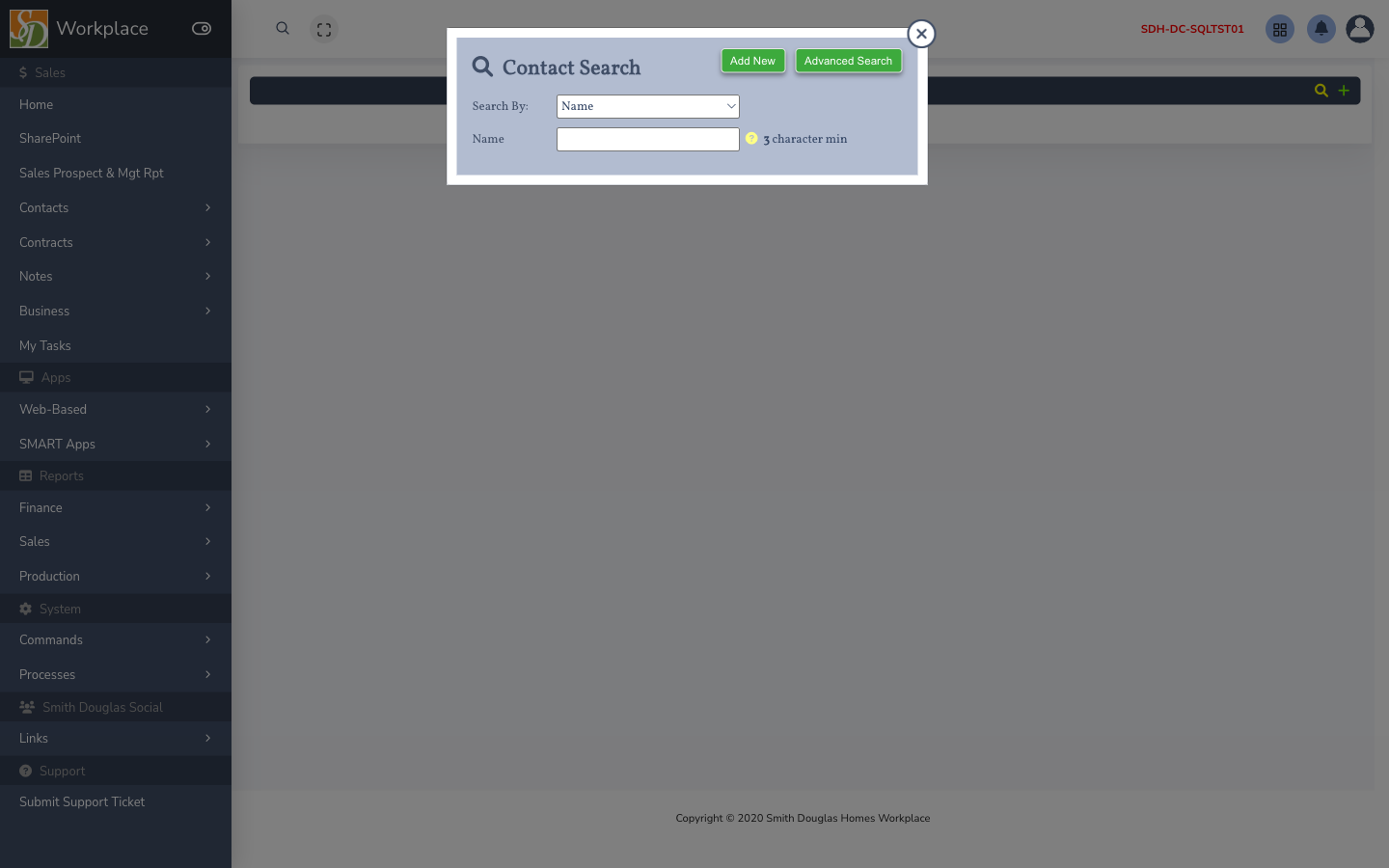
| Page | Path | What you do |
|---|---|---|
| Contacts | shared/contacts.aspx | Create and edit buyers, co-buyers, agents; link to lots |
| Contacts advanced search | shared/contacts-advanced-search.aspx | Find contacts by name, email, phone, community |
| Contracts | shared/contracts.aspx | Build quote/contract: plan, options, pricing |
| Contract management | shared/contract-management.aspx | Ratify, close, cancel; management search |
| Contracts advanced search | shared/contracts-advanced-search.aspx | Search contracts across communities |
| Business main | shared/businessmain.aspx | Vendor / business partner records |
| Business advanced search | shared/business-advanced-search.aspx | Find vendors / businesses across criteria |
| Notes search / upload | shared/notes-search.aspx, notes-upload.aspx | Journal notes on contacts/contracts |
Each linked page includes a screenshot (where captured) and a detailed workflow. Browse all screens in the screen reference.
Print/export: contracts-print.aspx, Excel exports on advanced-search pages.
Typical workflows
Section titled “Typical workflows”New sale on a lot
Section titled “New sale on a lot”- Confirm the lot is in the right status (Lot statuses).
- Open Contacts — create or attach buyers.
- Open Contracts for the lot — select plan and options (Selections).
- When ready, move to ratified via Contract management (see Contract statuses).
- Deposits and contingencies may still be updated in SMART 1.0 Sales per division rules (Deposits).
Ratify → close
Section titled “Ratify → close”- Contract management — locate contract (open search if needed).
- Complete checklist items your division requires (loan, options, dates).
- Ratify when sales manager approves. If SMART blocks ratify because an open PO must be canceled, use the PO number in the message and coordinate with Production — Trade PO batch → Cancel POs when your division uses web batch cancel.
- At closing, close the contract; accounting transmissions fire per Transmissions.
Cancel or rescind
Section titled “Cancel or rescind”Use Contract management cancel flow — do not delete rows in SQL. Status codes and audit trail matter for reporting.
Permissions
Section titled “Permissions”Pages check Session["WEB_APPS_MENU"] for app names like Sales or Contract Management. If you hit privs.aspx (“Insufficient Privileges”), ask an admin to assign the web application in Administration.
SMART 2.0 vs SMART 1.0
Section titled “SMART 2.0 vs SMART 1.0”| Task | Often in web (shared/) | Often desktop |
|---|---|---|
| Contract build & ratify | Many divisions — web | Some divisions — Sales module |
| Complex options / design center | Partial web | SMART Sales |
| Commissions | Rarely web | SMART Sales |
Troubleshooting
Section titled “Troubleshooting”| Symptom | Check |
|---|---|
| Contract won’t ratify | Contract status, missing deposit, lot status, division checklist |
| Options missing | Plan release in Product Development; std plan on lot |
| “Access denied” | Web app permission + SMART role |
| Changes not visible in desktop | Refresh both apps; same database |
Related
Section titled “Related”Backend (App_API)
Section titled “Backend (App_API)”| Service | Role |
|---|---|
contacts.asmx | Contact CRUD, search, prequal |
contracts.asmx | Contract create, options, change orders, accept |
contract-management.asmx | Ratify, close, cancel, management search |
businesses.asmx | Vendor/business records |
journal.asmx | Notes / journal search |
Interactive UI uses jQuery AJAX against these ASMX endpoints with session enabled.